
 Continue With Google
 continue with facebook


Compress JPG to 20KB Online for Free
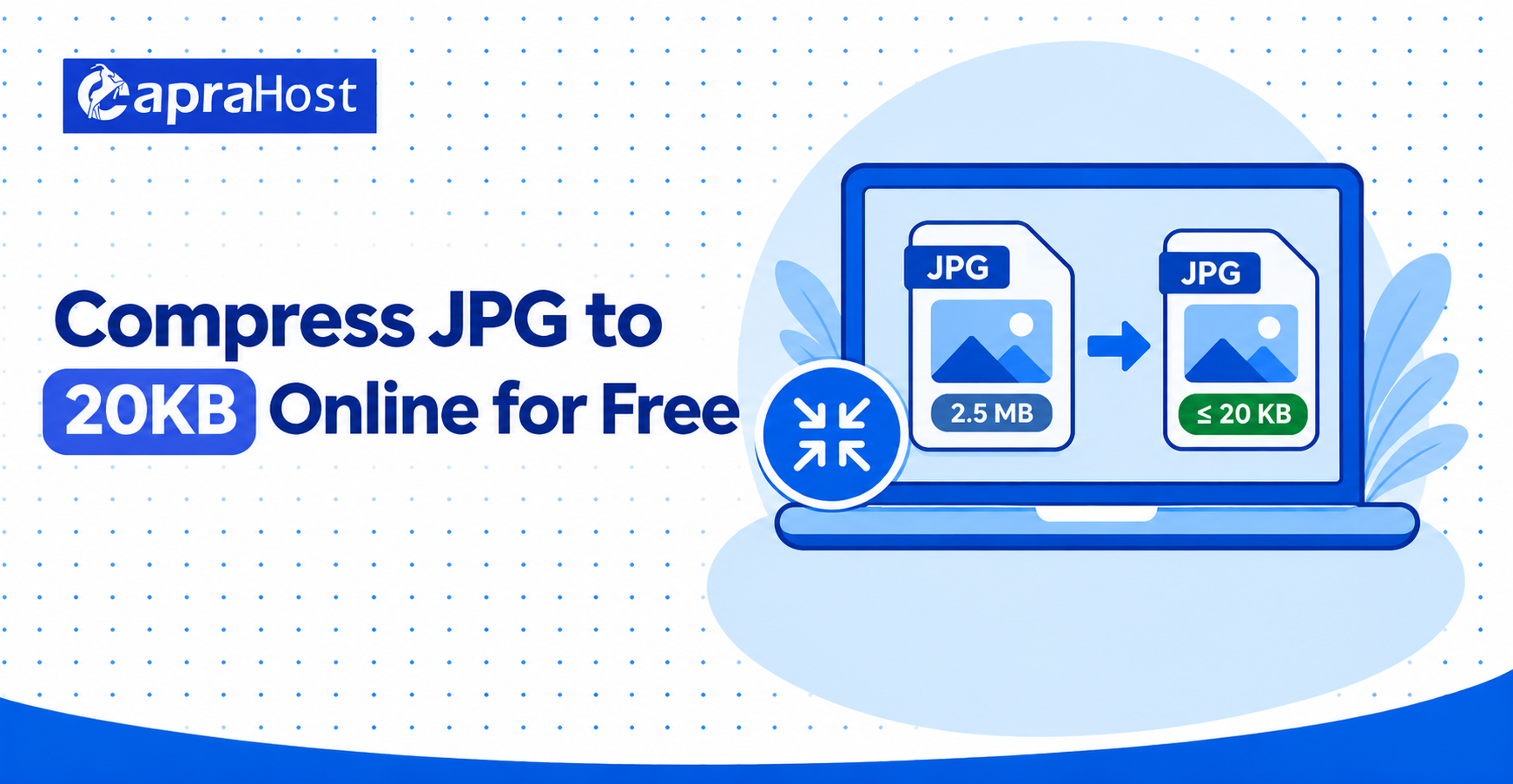
Large image files can be rejected by government forms, examination portals, job applications, and other websites with strict upload limits. JPG20KB helps you compress JPG to 20KB or below through your web browser, without installing additional software.
To begin, upload your image, choose 20KB as the target size, and start the compression. You can then preview the result, download it, and confirm that its file size, format, and dimensions meet the requirements of the website where you plan to use it. Because 20KB is a very small target for a detailed photo, some reduction in quality or dimensions may be necessary.
Compress JPG to 20KB
Use the JPG compressor above to reduce a JPG or JPEG image to 20KB or below. The process is designed for photos, signatures, application documents, and other images that must fit within a small upload limit.
Choose your image, select 20KB as the required size, and click the compression button. Once processing is complete, inspect the preview and download the new file. If a form states that an image must be “up to 20KB” or “not more than 20KB,” a result slightly below the target will normally satisfy the file-size limit. Always check whether the same form also specifies a minimum size, pixel dimensions, aspect ratio, or required format.
How to Compress a JPG Image to 20KB Online
You can create a smaller JPG in four straightforward steps. Starting with the original image gives the compressor the best opportunity to balance file size and visual clarity.
Step 1: Upload Your JPG or JPEG Image
Tap the upload area and choose an image from your phone, tablet, or computer. You can also drag and drop the file into the upload area on a compatible desktop browser. JPG20KB accepts common image formats shown beside the uploader and allows up to five images in one selection.
For the most predictable result, use a clear original file rather than an image that has already been compressed several times. If the image contains a large amount of unused background, crop it before uploading. This reduces the amount of visual information that must fit inside the 20KB limit.
Step 2: Select 20KB as the Target Size
Open the size selector and choose 20KB. This value acts as the compression target for the output. When a portal specifies a maximum of 20KB, the practical goal is to create a file that does not exceed that limit rather than one that contains exactly 20,000 or 20,480 bytes.
Read the destination portal’s instructions carefully. “20KB maximum,” “between 10KB and 20KB,” and “exactly 20KB” are different requirements. File-size units may also be calculated slightly differently by browsers, operating systems, and websites, so leaving a small margin below the maximum can help prevent rejection.
Step 3: Compress and Preview the Image
Click Compress & Download to begin processing. To reach a small target, the tool may reduce JPEG quality, image dimensions, or both. Detailed backgrounds, patterned clothing, fine text, and high-resolution photos usually need more compression than simple images.
Review the preview when it appears. Make sure a face remains recognizable, a signature is readable, and important text has not become blurred. A technically valid 20KB file may still be unsuitable if the content is too unclear for the receiving organization to verify.
Step 4: Download the Compressed JPG
Download the processed image to your device and open it once to confirm that it is not damaged. Check its file size in your device’s file manager or properties panel before uploading it to the intended form.
Keep the original image as a backup. If the destination website rejects the result because of its dimensions, background, or format, return to the original and create a new version. Recompressing the already reduced copy can cause avoidable quality loss.
Why Reduce an Image to 20KB?
A 20KB image is commonly required when an online system has limited storage, bandwidth, or older upload controls. Small file limits often appear on examination forms, recruitment sites, college admission portals, government services, identity applications, and employee systems.
Typical uses include:
- Passport-style photographs for online applications
- Scanned or photographed signatures
- Profile photos and identity records
- Thumbnails and small website images
- Attachments for forms with strict upload limits
File size is only one part of an upload requirement. A portal may also request JPG or JPEG format, a particular width and height, a fixed aspect ratio, a plain background, or a specific file-name pattern. Review all instructions before compressing the image so that you do not solve the size problem while missing another requirement.
How JPG Compression to 20KB Works
Reducing a detailed image to 20KB usually involves a combination of JPEG quality adjustment, dimension reduction, and metadata removal. The best combination depends on the original photo and the requirements of the destination portal.
JPEG Quality Reduction
JPEG is a lossy image format, meaning it can discard some visual information to create a smaller file. Lowering the JPEG quality setting reduces file size, but stronger compression can introduce block patterns, halos, blurred edges, or color changes.
A moderate quality reduction may be difficult to notice in an ordinary photo. At a strict 20KB limit, however, some visible change is often unavoidable—especially when the original image is large or contains many fine details. This is why a promise of “no quality loss” is not realistic for every image.
Image Dimension Reduction
Image dimensions describe the number of pixels in the width and height, such as 600 × 600 pixels. A high-resolution image contains more pixel data and is harder to fit into a small file. Reducing its dimensions can therefore produce a much larger size saving than lowering quality alone.
Use the dimensions specified by the receiving website whenever they are provided. If no dimensions are listed, avoid making the image smaller than necessary. A tightly cropped, moderately sized image will usually look clearer at 20KB than a very large image subjected to extreme JPEG compression.
Metadata Removal
Photos can include metadata such as camera details, timestamps, orientation information, and location data. Removing unnecessary metadata may reduce the file size without changing the visible pixels.
The amount saved varies from one file to another. Metadata removal alone will rarely turn a large photo into a 20KB image, but it can help the compressor meet a strict limit while preserving a little more space for visible image data.
20KB Photo Size in Pixels
There is no universal pixel size for a 20KB photo. File size and pixel dimensions measure different things: pixels describe the image’s width and height, while kilobytes describe how much storage the encoded file uses.
Two images with identical dimensions can have very different file sizes. A plain portrait against a solid background may compress efficiently, while a photo with hair detail, foliage, patterns, or text may require more data. JPEG quality, color variation, metadata, and the compression method also affect the result.
If an application asks for both 20KB and a specific pixel size, satisfy the pixel dimensions first and then compress the image to the required file-size range. Do not assume that a common dimension, such as 200 × 200 pixels, will automatically produce a 20KB file.
How to Keep the Best Image Quality at 20KB
Although a very small file cannot retain every detail from a large original, careful preparation can make the final image clearer. The aim is to spend the limited file size on the important part of the image rather than on unnecessary background or excess resolution.
For better results:
- Start with a sharp, well-lit original image.
- Crop empty or distracting background areas before compression.
- Use the exact pixel dimensions requested by the destination portal.
- Choose JPG for photographs when the portal accepts that format.
- Check faces, signatures, edges, and small text in the preview.
- Return to the original file when trying different settings.
- Avoid repeatedly saving and recompressing the same JPG.
If the photo becomes too blurry, reduce its dimensions more intelligently rather than forcing a very low JPEG quality. For a signature, a clean background and tight crop can substantially improve readability at a small file size.
Supported Image Formats and Devices
The JPG20KB uploader displays its currently supported formats beside the upload control. These may include JPG, PNG, and WebP, while support for formats such as HEIC can vary by browser and device. Check the live uploader before selecting a file, because the output requirements of your destination portal may be narrower than the tool’s input support.
When you upload a non-JPG image, confirm the format of the downloaded result before submitting it. A portal that specifically requests JPG or JPEG may reject a PNG or WebP file even when it is below 20KB.
The tool works through a web browser on mobile phones, tablets, laptops, and desktop computers. JavaScript must be enabled for uploading, previewing, processing, and downloading images. A current version of Chrome, Edge, Firefox, or Safari will generally provide the most reliable experience.
Is It Safe to Compress Personal Photos Online?
Identity photos and signatures can be sensitive, so privacy should be considered before uploading them to any online service. JPG20KB states that uploaded images are processed securely, are not permanently stored, and are automatically removed after processing. Review the site’s current privacy information for the precise handling and deletion terms that apply when you use the tool.
No online service should be described as risk-free without clear technical details. Before using any image tool for highly sensitive material, check whether processing occurs entirely in your browser or whether the file is sent to a server. Also review what information is logged, how long files remain available, and whether third parties are involved in processing.
Use a trusted device and network, keep your browser updated, and make sure you are on the correct website before selecting a personal file. Never upload an image that contains more information than the form actually requires.
Troubleshooting JPG Compression Problems
Most upload, processing, or download problems are caused by an unsupported file, browser restrictions, a very large source image, or a target that is difficult to reach. The following checks address the most common issues.
The Image Will Not Upload
Confirm that JavaScript is enabled and that the selected image uses a format listed by the uploader. If the file is unusually large, close unnecessary browser tabs and try a smaller copy. You can also refresh the page, update the browser, or try another current browser.
Some privacy extensions, script blockers, and restrictive browser settings can prevent the upload control from working. Temporarily allowing the required page functions may resolve the problem. Do not disable security software globally; limit any change to the trusted page and restore the setting afterward.
The File Cannot Reach 20KB
A large or complex photo may not remain useful at 20KB without reducing its dimensions. Crop unnecessary background, resize the image to the portal’s required width and height, and try again with the original file.
If the receiving website specifies a size range rather than a fixed maximum, choose a target inside that range. When clarity becomes unacceptable, confirm whether the portal permits a larger file or a different format instead of continuing to lower the quality.
The Compressed Image Looks Blurry
Blur usually indicates that too much visual information has been removed to meet the target. Begin again with the original, crop it more tightly, and resize it to the required dimensions before compression. A simple, clean image normally survives aggressive compression better than a wide photo with a detailed background.
For document photos, make sure the face is well lit and in focus. For signatures, use a plain background with strong contrast. These improvements help preserve the important content even when the final file must remain very small.
The Download Button Does Not Work
Check whether your browser has blocked automatic downloads or is waiting for you to approve a file. If nothing happens, refresh the page, upload the image again, and repeat the compression process. A download-blocking extension may also interfere with the button.
On a mobile device, look in the browser’s Downloads section or the device’s Files app after tapping the button. The downloaded file may be saved successfully even if the browser does not display a prominent confirmation.
Frequently Asked Questions
These answers cover the most common questions about creating and using a 20KB JPG. The requirements shown by the website receiving your image should always take priority.
Can I compress a JPG to exactly 20KB?
You can target 20KB, but an output slightly below the limit is more practical when a form specifies a maximum size. Producing an exact byte count is difficult because JPEG data changes in steps as quality and dimensions are adjusted. Confirm whether the destination requires an exact size or simply a file no larger than 20KB.
Will compressing a JPG to 20KB reduce its quality?
It often will. JPEG compression is lossy, and 20KB is a strict limit for a detailed photo. Cropping unnecessary areas and using appropriate pixel dimensions can help preserve clarity, but no tool can guarantee that every large image will reach 20KB with no visible quality change.
Can I compress PNG, WebP, or HEIC images to 20KB?
You can upload the formats currently listed by the JPG20KB upload control. Browser support may vary, particularly for HEIC files. If the receiving form requires JPG or JPEG, verify that the downloaded output uses that format before submitting it.
What are the pixel dimensions of a 20KB JPG?
A 20KB JPG has no fixed pixel dimensions. Its final size depends on width, height, JPEG quality, image detail, colors, and metadata. Follow the destination portal’s stated pixel requirements rather than choosing dimensions based only on the 20KB limit.
Can I compress multiple images at once?
The homepage uploader currently indicates that you can select up to five images. The interface and limits may change, so check the text beside the upload area before starting a batch. Review each output separately because different images may require different levels of compression.
Is the 20KB JPG compressor free?
JPG20KB presents the compressor as a free online tool that works without installing an application. Check the live page for any current limits on the number of files, input size, or available features before processing a large batch.
Does the tool store my uploaded images?
JPG20KB states that images are not permanently stored and are automatically deleted after processing. For sensitive files, consult the current privacy policy for details about server processing, temporary retention, logs, and deletion rather than relying only on a short interface message.
Can I use the compressor on a mobile phone?
Yes. Open JPG20KB in a supported mobile browser, choose an image from your camera roll or files, select 20KB, and start compression. After downloading, use your phone’s Files app or download manager to verify the result before uploading it to a form.
Create Your 20KB JPG
To prepare an image for a strict upload limit, start with the clearest original, crop unnecessary areas, select 20KB as the target, and review the compressed result before downloading it. Confirm the file size, format, pixel dimensions, and visual quality against the complete requirements of the receiving website.
When the image is ready, keep the original safely stored and submit the compressed copy. If the form rejects it, check the exact error message—it may identify a dimension, format, naming, or minimum-size requirement rather than a problem with the 20KB limit itself.