
 Continue With Google
 continue with facebook



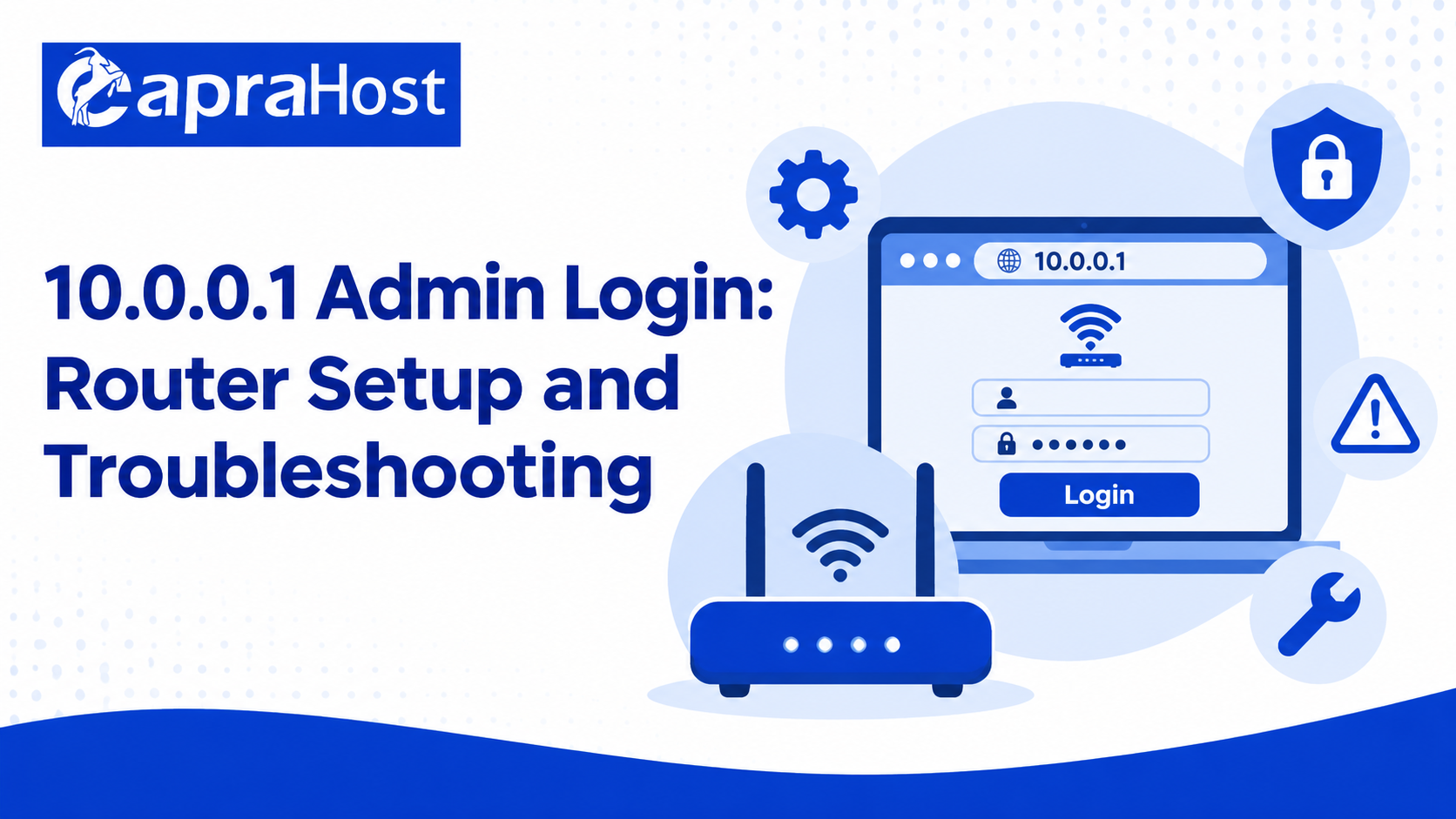
The 10.0.0.1 admin login page lets you manage a router or gateway that uses this address on your local network. Depending on your equipment, you may be able to view connection details, update the administrator password, and adjust network settings.
To get started, connect to your router, confirm its gateway address, and enter that address in your browser. If your gateway is 10.0.0.1, try http://10.0.0.1. The instructions below explain how to sign in, resolve common access problems, and make changes without losing track of your connection.
What Is 10.0.0.1?
10.0.0.1 is a private IPv4 address. A router can use it as its address within a local network, allowing connected devices to communicate with it and, when available, open its administration interface.
This address is not a universal login for every router. Your equipment may use a different gateway address, and its administration features may be available through a manufacturer or internet provider app. Confirm your device’s gateway before trying to log in.
A public website explaining 10.0.0.1 is separate from your router’s local login page. Enter your router credentials only in the verified local interface or official management app.
How to Access the 10.0.0.1 Admin Login
Access generally requires a connection to the router’s network, the correct local address, and valid administrator credentials. Menu names and available controls vary by model, so keep the router’s manual or provider instructions nearby.
Connect to Your Router’s Network
Connect your computer, phone, or tablet to the router’s main Wi-Fi network. You can also connect a computer to a LAN port on the router using an Ethernet cable.
A phone using only cellular data will not normally reach your home router’s private address. Guest Wi-Fi may also restrict access to local administration pages. If the login page does not load, check that you are connected to the intended network.
Find and Confirm Your Default Gateway
Check your device’s network details to identify the router address. On Windows, open Command Prompt, enter ipconfig, and look for Default Gateway under the active Wi-Fi or Ethernet adapter.
On a Mac, open System Settings, select Network, open the active connection’s details, and look for the router address under TCP/IP. On an iPhone or iPad, open Settings, select Wi-Fi, tap the information button beside the connected network, and look for Router. Android menu names vary, but gateway information may appear in the connected network’s details or advanced settings.
If the listed address differs from 10.0.0.1, use the address shown for your active connection. With multiple routers or a mesh system, consult the equipment’s documentation if that address does not provide the management interface you need.
Open the Router Address in a Browser
Open a browser and type http://10.0.0.1 into the address bar if you have confirmed that it is your router’s address. Press Enter and wait for the interface to load. Follow your manufacturer’s instructions if the device requires HTTPS or a dedicated app instead.
For supported Xfinity gateways, local Admin Tool access may need to be enabled first. Xfinity’s instructions direct users to the app’s WiFi tab, then View WiFi equipment and Advanced settings to manage Admin Tool access. Once enabled, the tool can be reached at http://10.0.0.1 while connected to the home network. See.
Sign In With Your Router Credentials
Use the administrator credentials you created during setup. If you have never configured them, check your model’s official setup instructions and any relevant information printed on the router label. Some devices require you to create an administrator password when you first enable management access.
The administrator password controls router settings. The Wi-Fi password connects devices to the wireless network. These serve different purposes and may have different values. Avoid assuming that a common username and password combination will work on every model.
Common Router Address Mistakes
A small typing error can prevent the login page from opening. Before changing router settings or attempting a reset, check the address itself and make sure the browser is navigating directly to it.
10.0.0.1 vs. 10.0.0.0.1
10.0.0.1 has four number groups separated by three periods, which matches IPv4 address formatting. The frequently typed address 10.0.0.0.1 has five groups and is not a valid IPv4 address.
Enter the address carefully, using the digit 0 wherever a zero is required. Spaces, extra periods, and the letter O can all cause problems. Even a correctly typed 10.0.0.1 will work only if your equipment actually uses that address.
Typing the Address Into a Search Box
Entering the router address into a search engine can produce articles and troubleshooting pages instead of opening your router. Click the browser’s address bar and enter the complete local URL, such as http://10.0.0.1.
If search results still appear, check for typing errors and try again. You do not need to visit a third-party login website to reach a router’s local administration page.
Troubleshoot Router Login Problems
Login failures usually involve the connection, the gateway address, access restrictions, or credentials. Work through these possibilities before considering a factory reset, which can erase settings needed to restore your network.
The Router Login Page Will Not Open
First, confirm that your device is connected to the correct router and that the gateway address matches the URL you entered. If possible, try an Ethernet connection or another device on the same network.
Next, try a private browser window or another browser. If a VPN is routing or blocking local traffic, temporarily disconnect it when appropriate and retry. Check the manufacturer’s instructions for the required HTTP or HTTPS address and whether browser administration must be enabled through an app.
If the router appears unresponsive, perform a normal restart according to its instructions and allow it to finish starting up. Avoid pressing the reset button while troubleshooting a simple access problem.
The Admin Username or Password Is Rejected
Check capitalization, keyboard layout, and accidental spaces. If your browser fills in a saved password, make sure it belongs to this router and reflects the latest administrator credentials.
Use the router admin password rather than automatically entering the wireless password or provider account password. Check the model’s official documentation for its sign-in method. Repeatedly guessing common passwords is unlikely to resolve a device-specific credential problem.
You Forgot the Router Admin Password
Check your password manager and setup records first. Then look for an official recovery option in the router interface, companion app, or provider support instructions. Available recovery methods depend on the equipment.
If recovery is unavailable, the manufacturer may instruct you to perform a factory reset. Follow the exact procedure for your model. A factory reset can remove custom Wi-Fi names, passwords, and network configuration; TP-Link explicitly documents this loss of custom settings in its factory reset guide.
Before resetting, obtain any provider setup information you may need and save a configuration backup if the interface is still accessible. Expect to reconnect devices after setting up the network again.
Change Your Router and Wi-Fi Settings
Once signed in, review the available controls and change only settings you understand. Record the original values before making adjustments, and apply one change at a time so you can identify what caused a connection problem.
Some providers manage certain settings through their apps. A browser interface may therefore offer fewer controls than expected, even when login succeeds.
Update the Wi-Fi Network Name and Password
Look for a section named Wi-Fi, Wireless, or Network. If your router allows changes there, enter the new network name and a strong, unique wireless password, then save the settings. Avoid including personal details in the network name.
Changing the name or password can disconnect wireless devices. Reconnect your phone, computer, smart devices, and other equipment using the updated details. An Ethernet connection can help you continue managing the router while wireless settings change.
On Xfinity equipment, the method depends on the gateway model. Xfinity states that browser-based Wi-Fi name and password management through the Admin Tool is limited to rented XB2 and XB3 gateways; follow its app instructions for other supported equipment.
Change the Router Admin Password
Find the administration, account, or password settings. Enter the current password if requested, create a unique replacement, and save it in a password manager. Follow any password requirements shown by the router.
After saving, the interface may ask you to sign in again. Confirm that the new credentials work before closing your session. Changing the administrator password usually does not change the Wi-Fi password; check the specific field you are editing.
Review Firmware and Wireless Security Settings
Check your model’s official documentation for firmware updates and supported wireless security options. Some routers offer updates in their management interface, while provider-managed gateways may receive updates automatically.
If you install firmware manually, use the manufacturer’s file for the exact model and hardware version and follow its installation instructions. Keep the router powered during the update. For wireless security, use a supported modern option such as WPA3-Personal, or WPA2-AES where compatibility requires it, following the manufacturer’s guidance for your devices.
Frequently Asked Questions
The answers below address common questions about reaching the router interface and understanding the settings involved. Your equipment’s official instructions remain the best reference for model-specific behavior.
Why Does 10.0.0.1 Not Work on My Network?
Your router may use a different address, your device may be connected to another network, or local administration may be restricted. Check the default gateway for your active connection and confirm whether the router requires an app or an access setting to be enabled.
Can I Open the Router Login Page on My Phone?
Yes, if the router supports browser management and your phone can reach its local network. Connect to the router’s Wi-Fi and enter its verified address in your browser. If the manufacturer or provider requires an app, use its official app instead.
Are the Admin and Wi-Fi Passwords the Same?
They are separate credentials with different purposes, although their values can sometimes be identical. The admin password protects configuration access, while the Wi-Fi password allows devices to join the wireless network. Check your setup records rather than assuming one will work for both.
Does Restarting a Router Reset Its Settings?
A normal restart generally preserves saved settings. A factory reset restores the device’s factory configuration and can erase your custom setup. Use the restart procedure in the manual, and do not hold a reset button unless you intend to follow the model’s factory reset instructions.
How Do I Find My Router’s Actual Gateway Address?
Open the network details for your device’s active connection and look for Default Gateway or Router. On Windows, ipconfig displays the default gateway for each adapter. Use the address associated with the connection you are actually using, then consult your router’s documentation if its management page is unavailable there.