
 Continue With Google
 continue with facebook




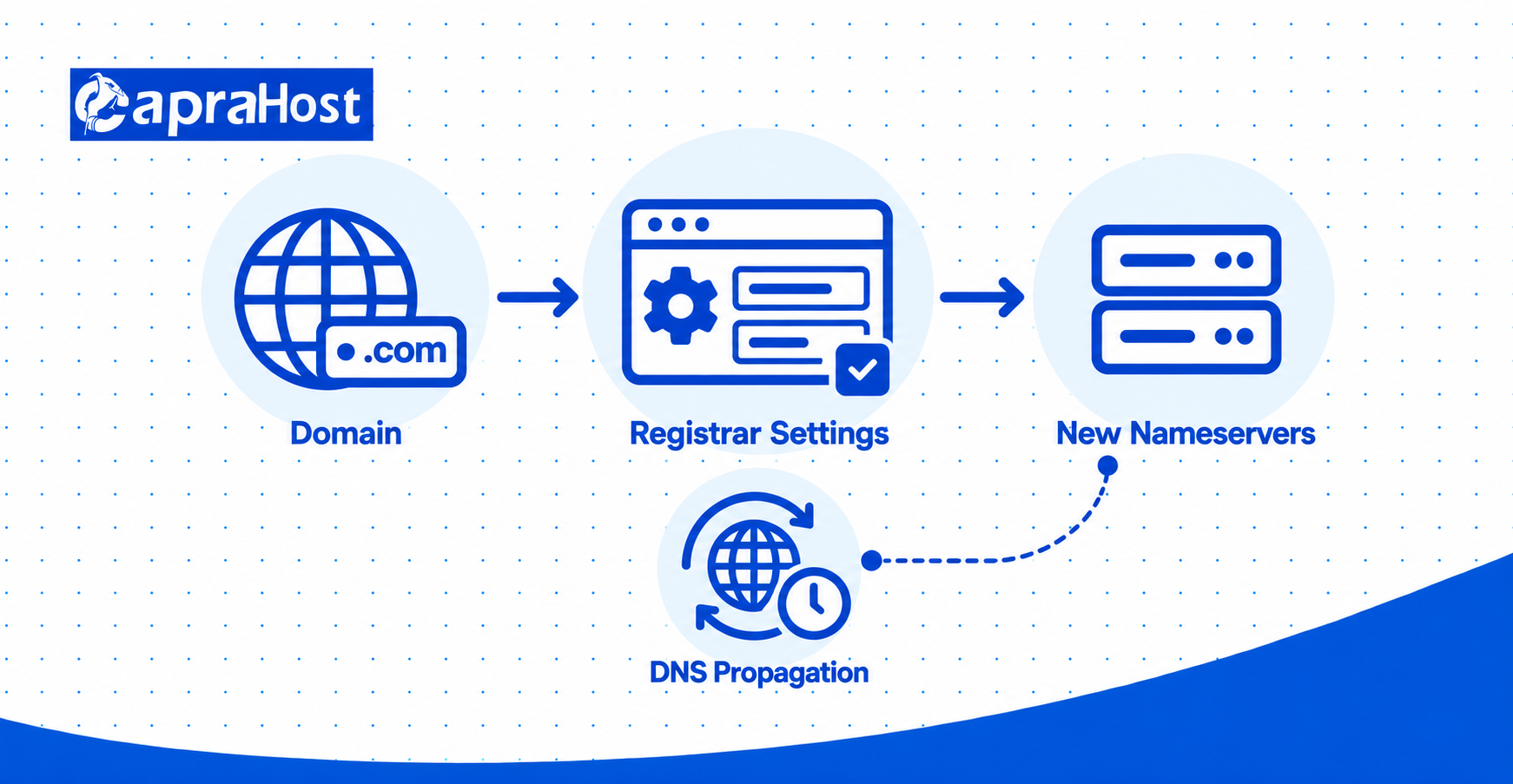
Changing nameservers is an important step when connecting your domain to a web hosting provider. Nameservers are part of the Domain Name System (DNS). They help visitors find your website by directing DNS lookups to the correct service.
Website owners often change nameservers when switching hosting providers or setting up a new website. These changes happen through your domain registrar, such as GoDaddy or Namecheap. Correct DNS settings help your website and email services work properly.
In this guide, you’ll learn how to change nameservers step by step. We’ll explain where to find them, how to update them, and how long changes take. You’ll also learn how to verify the changes and fix common problems.
What Are Nameservers and Why Do You Need to Change Them?
Nameservers are DNS servers that identify where your domain’s DNS records are managed. They help the internet locate information needed to connect visitors to your website. This process works through the Domain Name System (DNS).
For example, a hosting provider might assign ns1.example.com and ns2.example.com. These hostnames identify the DNS service responsible for your domain. Your hosting provider supplies the actual nameservers you should use.
You may need to change nameservers when moving to another DNS provider or connecting certain hosting services. Changing nameservers does not transfer your domain ownership or website files. It only changes which DNS service manages your domain’s records.
What to Do Before Changing Nameservers
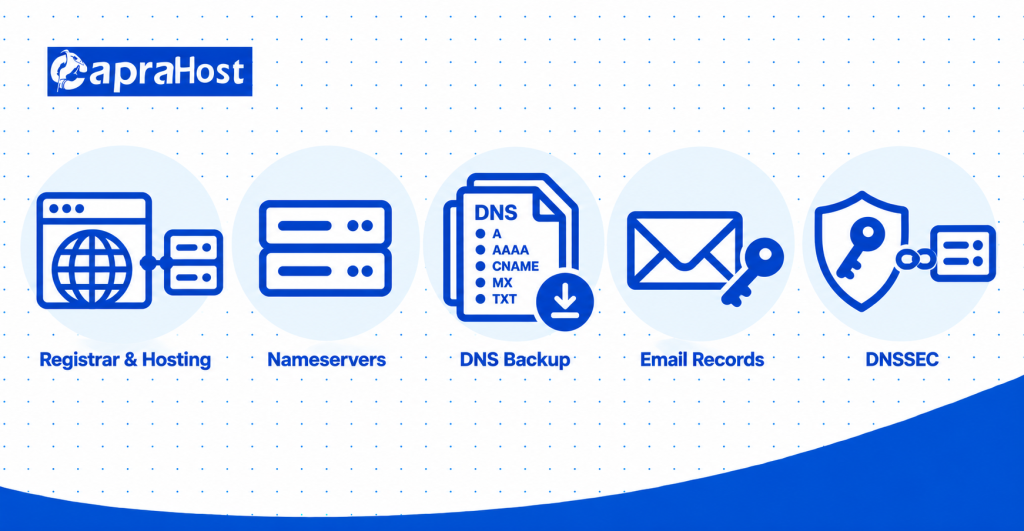
Before changing nameservers, identify your domain registrar, collect the new hostnames, and back up existing DNS records. Preparing this information helps reduce website downtime and email delivery problems.
1. Find Your Domain Registrar and Hosting Provider
Your domain registrar manages your domain registration. Examples include GoDaddy, Namecheap, and Porkbun. Your hosting provider stores your website files and may be a different company.
Check your domain registration confirmation or account dashboard to identify your registrar. You can also use ICANN Lookup to find registration information.
2. Get the Correct Nameservers
Find the nameservers assigned by your new DNS or hosting provider. This information usually appears in your hosting dashboard, welcome email, or setup instructions.
For example, your provider might supply ns1.example.com and ns2.example.com. Copy the assigned hostnames exactly. Incorrect nameservers can prevent visitors from reaching your website.
3. Back Up Existing DNS Records
Save your existing DNS records before switching to another DNS provider. Important records include A, AAAA, CNAME, MX, and TXT. Each record serves a different purpose.
A records connect your domain to an IPv4 address, while MX records direct incoming email. TXT records can store domain verification and email authentication information.
Export your DNS zone if your provider supports this feature. Otherwise, copy the required records manually. Add them to the new DNS provider before changing nameservers.
4. Check Email Settings and DNSSEC
Check your MX, SPF, DKIM, and DMARC records before changing nameservers. These records support email delivery and authentication. Missing entries can interrupt business email services.
Also review DNSSEC, which helps protect DNS information from tampering. An outdated DS record can make your domain unreachable after switching providers. Follow your new provider’s DNSSEC migration instructions.
How to Change Nameservers Step by Step
You can change nameservers in 6 steps through your domain registrar’s control panel. The process is similar across providers like GoDaddy, Namecheap, and Porkbun. However, menu names may differ.
Step 1: Log In to Your Domain Registrar Account
Visit your domain registrar’s official website and sign in. Open the domain management area in your dashboard. It may appear as My Domains, Domain List, or Domain Management.
Step 2: Select the Domain You Want to Update
Find the domain whose nameservers you want to change. Click the domain name or select its Manage option. This opens the settings for that specific domain.
Step 3: Find the Nameserver Settings
Look for a section labeled Nameservers, DNS Management, or Domain Settings. This section displays your domain’s current nameservers. Some registrars place these settings inside an advanced management menu.
Step 4: Choose Custom Nameservers
Select the option to use custom or external nameservers. This allows another DNS provider to manage your domain. The option may be labeled Custom DNS or Use My Own Nameservers.
Step 5: Replace the Old Nameservers
Remove the existing nameservers and enter the hostnames supplied by your new provider. For example, these might be ns1.example.com and ns2.example.com. Enter the actual assigned values carefully.
Check each hostname before continuing. Do not combine unrelated nameservers from different providers. Doing so can cause inconsistent DNS responses.
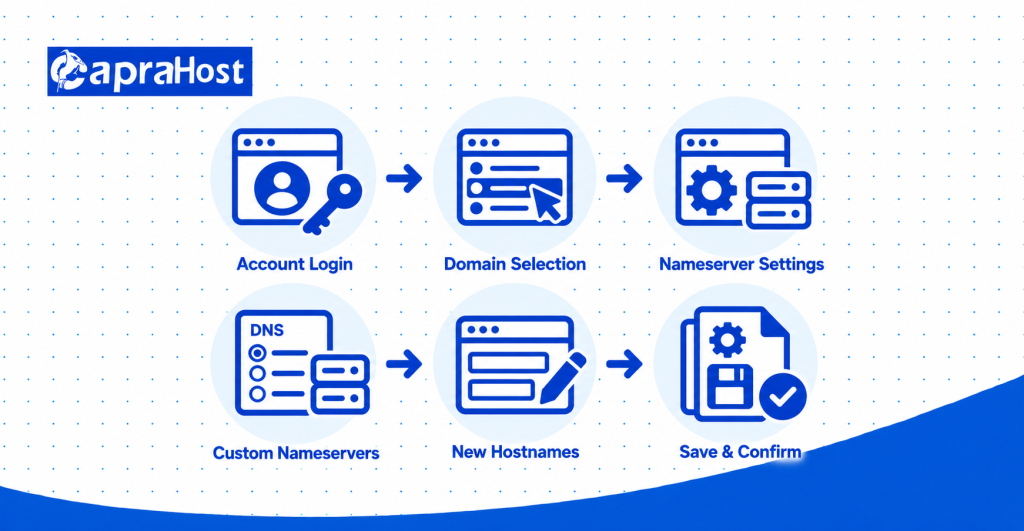
Step 6: Save and Confirm Your Changes
Click Save, Update, or Change Nameservers to submit the changes. Some registrars require additional confirmation or account verification. Complete these steps when prompted.
Reopen your domain settings and confirm the new nameservers appear. The registrar may save your changes immediately. However, cached DNS information may take longer to update.
How to Change Nameservers on Popular Domain Providers
Popular domain providers allow nameserver changes through their account dashboards. The general process remains similar, but navigation menus differ. Here is how to update nameservers with 5 providers.
How to Change Nameservers in GoDaddy
Sign in to your GoDaddy Domain Portfolio and select your domain. Open DNS, choose Nameservers, and select the option to use your own nameservers.
Enter the hostnames supplied by your DNS provider. Click Save and complete the confirmation process. GoDaddy may request identity verification before accepting the change.
How to Change Nameservers in Namecheap
Log in to Namecheap and open Domain List. Click Manage beside your domain and locate the Nameservers section.
Select CustomDNS from the dropdown menu. Enter your new nameservers and click the green checkmark. Confirm that the saved values match your DNS provider’s instructions.
How to Change Nameservers in Hostinger
Sign in to your Hostinger dashboard and open your domain’s DNS management area. Find the DNS / Nameservers tab and select Change Nameservers.
Choose the option for external nameservers and enter the assigned hostnames. Save the changes when finished. Available menu options may vary depending on your domain registration.
How to Change Nameservers on Cloudflare
Log in to Cloudflare and add your domain. Review the imported DNS records before switching. Find the 2 assigned nameservers on your domain’s Overview page.
Copy both hostnames and enter them at your domain registrar. Save the changes and wait for Cloudflare activation. Domains registered through Cloudflare Registrar normally must use Cloudflare nameservers.
How to Change Nameservers in Porkbun
Log in to your Porkbun account and open Domain Management. Find your domain, click Details, and locate the Nameservers section.
Click the edit icon and remove the previous entries. Enter your new nameservers and select Save Nameservers. Complete any additional confirmation if requested.
How Long Does It Take for Nameservers to Update?
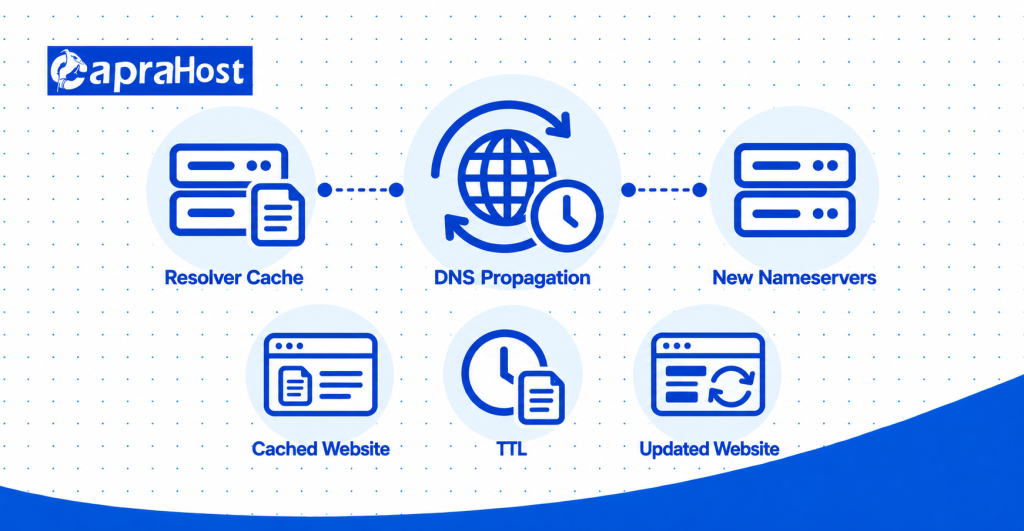
Nameserver changes often appear within a few hours but can take up to 48 hours worldwide. According to Porkbun, nameserver propagation may take up to 48 hours.
This delay happens because DNS resolvers temporarily store previously retrieved information. For example, one visitor may reach your new website while another still sees the old version.
DNS caching depends partly on Time to Live (TTL), measured in seconds. A TTL of 300 seconds equals 5 minutes. A TTL of 3,600 seconds equals 1 hour.
Lower TTL values can help certain DNS record updates appear sooner. However, changing your website’s A record TTL does not automatically speed up nameserver delegation.
How to Check If Your Nameservers Have Changed
You can verify nameserver changes using free online DNS lookup tools or command-line commands. These methods help identify which nameservers are currently being returned for your domain.
Check Nameservers Using Free Online Tools
Open DNSChecker or WhatsMyDNS. Enter your domain name and select the NS record type. Run the lookup to view the results.
Compare the displayed nameservers with those assigned by your DNS provider. Matching results indicate that the checked DNS resolvers are reporting your new configuration.
Check Nameservers Using Command-Line Tools
Linux and macOS users can open Terminal and enter dig NS example.com. This command displays the nameserver records returned by the configured DNS resolver.
Windows users can open Command Prompt and enter nslookup -type=NS example.com. Replace example.com with your actual domain name.
For a deeper check, use dig example.com +trace where available. This command follows the DNS delegation path. It can help identify incorrect nameserver configurations.
Common Problems After Changing Nameservers and How to Fix Them
Nameserver problems often occur because of incorrect settings, missing DNS records, or cached DNS information. Identifying the cause helps restore website and email services.
1. Nameservers Are Not Updating
If your domain still shows old nameservers, check whether your registrar saved the changes. Compare the current NS records using DNSChecker or WhatsMyDNS.
Allow cached information time to expire. If the new nameservers remain missing after 48 hours, contact your registrar for assistance.
2. Website Not Loading After Changing Nameservers
A missing or incorrect A record can prevent your website from loading. Check whether your domain points to the correct hosting server IP address.
Also verify the A or CNAME record for www.example.com. Your hosting server must be configured to respond to the domain.
3. Domain Still Points to Old Hosting
Your domain may still display the previous website because of DNS caching. An outdated A record can also direct visitors to your old server.
Check the records at your new DNS provider. Compare DNS responses using Google Public DNS and Cloudflare DNS.
4. Email Not Working After Nameserver Changes
Email can stop working if the new DNS provider lacks the correct MX records. These records tell receiving mail servers where to deliver messages.
Check your email provider’s required MX, SPF, DKIM, and DMARC settings. Restore any missing entries in your new DNS zone.
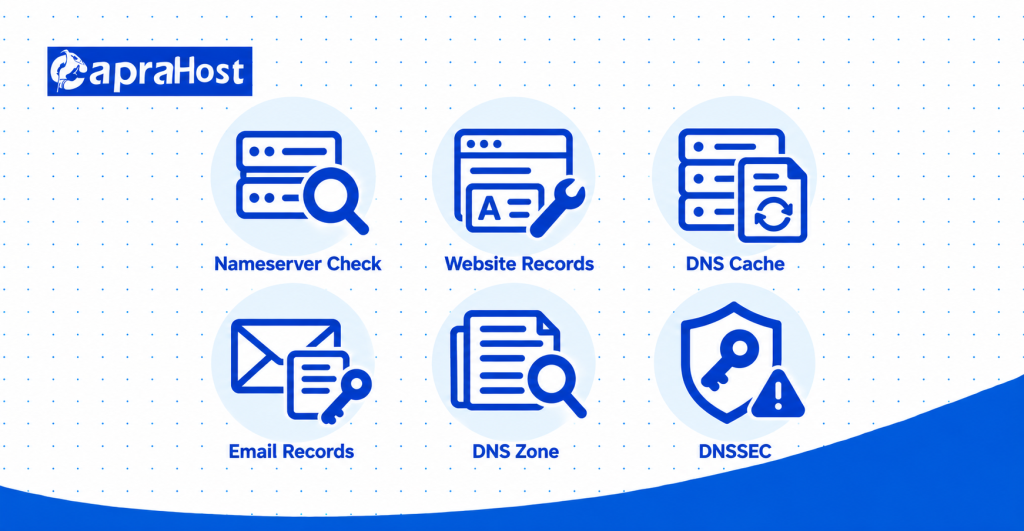
5. Incorrect Nameservers or Missing DNS Records
Compare each entered nameserver with the hostname supplied by your DNS provider. Even a spelling mistake can prevent your domain from resolving.
Confirm that your new DNS provider has an active zone for your domain. Check that all required website and email records exist.
6. DNSSEC and DNS Propagation Issues
An outdated DNSSEC DS record can cause validation failures after switching DNS providers. This may make your domain unreachable even when the nameservers are correct.
Check your registrar’s DNSSEC configuration and follow your provider’s recovery instructions. Do not assume every DNS error is caused by propagation.
Should You Change Nameservers or DNS Records?
Change nameservers when moving DNS management to another provider. Update an A record when only your website’s IPv4 address changes. These actions control different aspects of domain configuration.
Nameservers identify the DNS service responsible for your domain. An A record connects a hostname, such as example.com, to an IPv4 address.
For example, you can connect your domain to a CapraHost VPS by updating its A record. You may not need to change nameservers if your current DNS service already works.
Changing nameservers requires preparing your entire DNS zone, including email records. Updating one A record usually leaves unrelated DNS records unchanged.
How Nameservers Work With VPS Hosting
Nameservers identify the DNS service that provides the records connecting your domain to a Virtual Private Server (VPS). A VPS has an IP address that can host your website.
Connecting a Domain to a VPS Server
You can connect your domain to a VPS by creating or updating its A record. For example, example.com might point to the documentation IP address 192.0.2.10.
Replace this example with your actual VPS IP address. Configure your web server and www hostname separately if required.
Using Existing DNS Services With VPS Hosting
You can continue using DNS providers like Cloudflare, GoDaddy, or Namecheap while hosting your website on a VPS. Simply update the appropriate A record.
This approach keeps DNS management with your current provider. It avoids changing nameservers when only the website’s server address needs updating.
When Are Custom or Private Nameservers Needed?
Custom nameservers are useful when operating your own authoritative DNS service. For example, a hosting administrator might configure ns1.example.com and ns2.example.com.
Each hostname must point to a functioning authoritative DNS server. Custom nameservers are optional for normal VPS website hosting.
How Glue Records and cPanel/WHM Work
Glue records help DNS resolvers locate nameservers hosted within the domain they serve. For example, ns1.example.com may require a registered glue address.
cPanel and WHM can manage DNS zones and nameserver configuration. However, domain delegation and required nameserver registration must also be completed through your registrar.
Frequently Asked Questions About Changing Nameservers
Can I Change Nameservers Without Transferring My Domain?
Yes, you can change nameservers without transferring your domain. Your domain remains registered with the same registrar while its authoritative DNS provider changes.
Is Changing Domain Nameservers Free?
Most domain registrars allow nameserver changes without an additional fee. However, an external managed DNS provider may charge for its service.
Will Changing Nameservers Cause Website Downtime?
Changing nameservers does not automatically cause website downtime. Problems can occur if your new DNS provider lacks required records or has incorrect DNSSEC settings.
Can I Change My Nameservers Back?
Yes, you can usually restore your previous nameservers through your domain registrar. The previous DNS configuration must remain available for your services to work.
Can I Change Nameservers in cPanel?
Domain-level nameserver changes usually happen at your registrar, not inside cPanel. WHM can configure nameserver infrastructure, but registrar-level delegation remains separate.
Do I Need to Change Nameservers When Switching Hosting Providers?
No, switching hosting providers does not always require changing nameservers. Updating your domain’s A record may be enough to connect your website to another server.
Final Checklist After Changing Nameservers
Your nameserver change is complete when the correct DNS delegation and required domain services work properly. First, confirm your registrar displays the assigned nameservers.
Next, check your NS records and test your main website and www address. Verify that email delivery and authentication records remain configured correctly.
Finally, review any unresolved DNSSEC or DNS resolution errors. If you’re connecting a domain to VPS hosting, an A record update may be sufficient without changing nameservers.